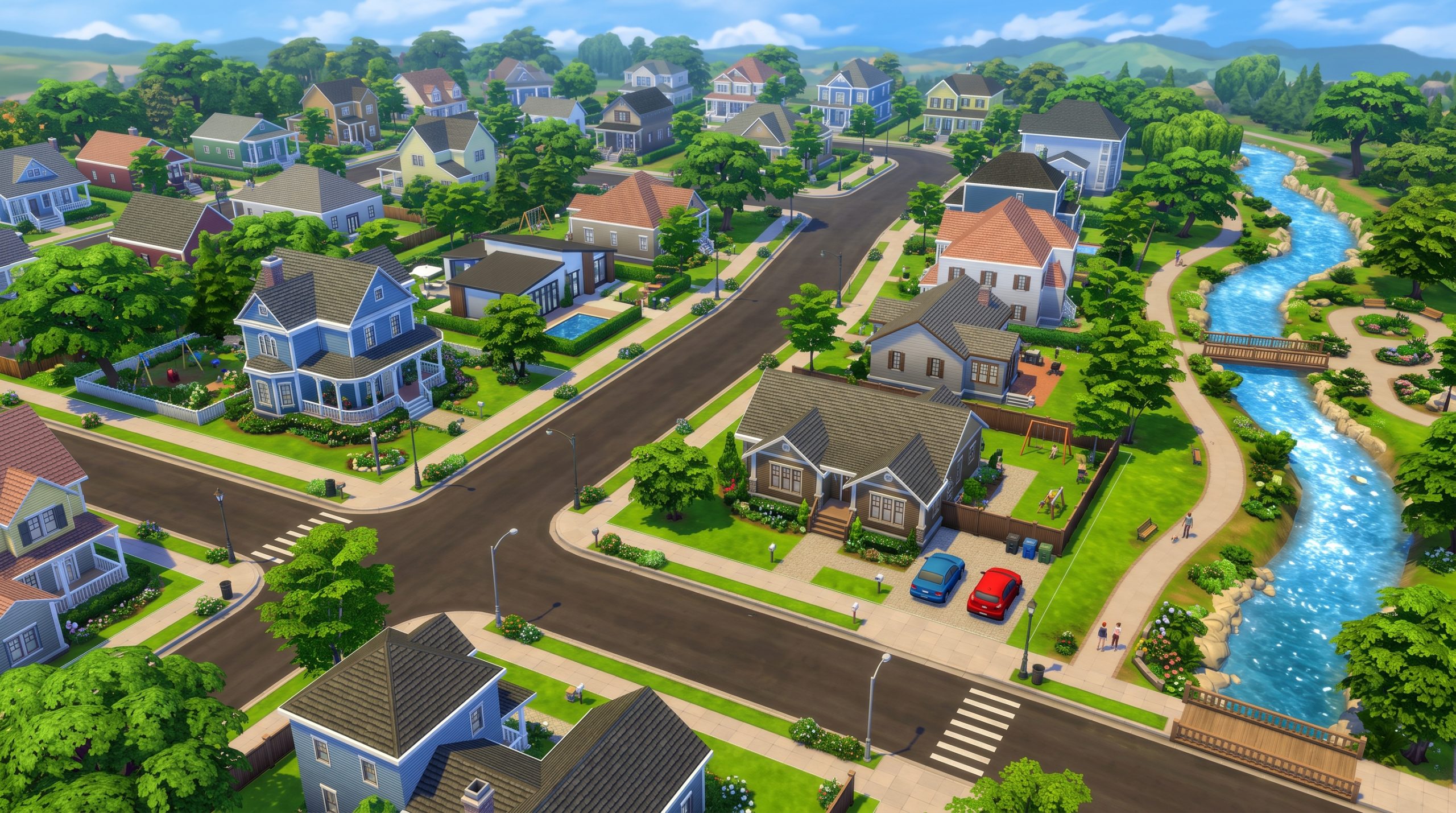
Navigating the virtual lives of your digital avatars requires understanding how their universe is structured, and the Sims 4 world map system sits at the absolute center of this experience. Unlike its predecessor, which relied on a single vast terrain rendered all at once, Maxis designed the fourth installment around a interconnected network of distinct regions, lots, and public spaces. Whether you are sending your Sim to work in San Myshuno, taking a vacation in Granite Falls, or simply walking over to a neighbor’s house in Willow Creek, the way the game handles geography shapes your entire playstyle. Understanding this architecture allows you to build better storylines, manage long save files without performance degradation, and streamline your gameplay sessions.
What Is the One Big World Map System in The Sims 4?
At its core, the world setup in The Sims 4 functions as an interconnected hub rather than a localized, isolated region. When you open the global overview screen, you are presented with a visual directory of every environment installed on your system. This macro-level view bridges suburban neighborhoods, dense urban districts, rural hamlets, and tropical archipelagos into a unified directory that your Sims can access freely at any point during their lives.
Rather than forcing you to lock a household into a single city for their entire generation, the game treats every environment as a travel destination within the same continuous timeline. A Sim living in a dusty starter home in Oasis Springs can easily commute to an art gallery in Del Sol Valley, grab dinner at a seafood bistro in Brindleton Bay, and return home in time for bed. This overarching matrix ensures that no content is ever walled off behind a hard reset or separate save file.
Understanding the Zone and Neighborhood Architecture
To understand how worlds work in Sims 4, you must examine how a single world map is broken down into smaller, self-contained functional units. Each world is partitioned into distinct sub-regions known as neighborhoods. Within these neighborhoods, you will find active lots (residential homes, parks, bars, and venues) surrounded by an open public area.
The open public area is a continuous zone where Sims can roam, forage for collectibles, fish in natural ponds, or socialize on outdoor benches without encountering a load screen. However, the moment your Sim steps over the threshold of a specific building or property line on a neighboring lot, the game requires a quick transition to load the specific assets, furniture, and light maps for that individual lot structure.
Residential, Commercial, and Destination Worlds
Not every map option in the game serves the same operational purpose. The developers categorized these spaces into three primary environmental types:
- Residential Worlds: Standard locations like Willow Creek, Newcrest, and Chestnut Ridge where Sims can purchase houses, rent apartments, and establish permanent roots while building local communities.
- Commercial & Community Hubs: Specific zones dense with nightlife, shopping venues, and career locations where residential housing is secondary to social gathering spots.
- Destination Worlds: Vacation spots such as Granite Falls, Selvadorada, and Batuu. Sims cannot naturally purchase permanent primary residences here without cheats or specific pack setups; instead, they rent temporary lodges or camp in tents for designated stay durations.
How Traveling Between Neighborhoods and Worlds Works
Moving your characters across the universe is designed to be seamless from a narrative standpoint, even if it involves backend loading sequences. The underlying simulation maintains active relationships, work schedules, and family histories regardless of where your Sims physical bodies are located on the global layout.
When you trigger a travel action, the game saves the precise state of the lot you are leaving and populates the target location with relevant non-player characters (NPCs), weather effects, and situational events tailored to that specific environment. This flexible architecture ensures that your home lot remains untouched while you explore distant locations.
Initiating Travel via Phone, Map Screen, and Interactions
There are multiple ways to execute Sims 4 travel between worlds depending on your immediate gameplay context. The most direct method is using your Sim’s smartphone located in the bottom left UI panel. Selecting the travel icon opens up a interface window that prompts you to choose destinations and companions.
Alternatively, pressing the ‘M’ key on your keyboard immediately brings up the neighborhood screen you are currently in. From there, clicking the world globe icon in the upper left corner transitions your view to the full global directory. You can also simply click on outdoor items, vehicle portals, or directional signs scattered across public spaces to trigger movement to adjacent zones.
Group Travel and Taking Other Sims Along
Traveling is rarely a solo affair in the game. When initiating a journey, a selection window allows you to select household members, romantic interests, friends, or even newly met acquaintances to come along for the ride. Key mechanics to keep in mind during group travel include:
- Automatic Gathering: Chosen companions will spawn alongside your active Sim immediately upon arriving at the landing pad of the target location.
- Split Household Management: Sims left behind at home will enter an autonomous state. You can set their background behavior (such as working on skills, cleaning, or taking care of self-needs) by clicking the small icon on their portrait.
- Group Routing: If you travel to a public space with a group, the game automatically assigns them a temporary social group status, keeping them close to your main character during interactions.
Key Differences Between Open Worlds and Connected Neighborhoods
Longtime fans of the franchise often compare this current setup to the structure introduced in 2009. A primary point of discussion is the comparison between a true, non-stop physical realm and the hybrid design used today. While many players originally envisioned a full Sims 4 seamless open world map, the developers ultimately chose a partitioned framework to prioritize performance, computer hardware accessibility, and stability across long play sessions.
Performance and System Requirements Trade-offs
The fully open structure of previous iterations processed the physical assets, weather systems, and pathfinding routines for hundreds of townies across an entire city simultaneously. This led to severe memory bloat, lag, and game crashes on lower-to-mid-tier computer hardware. By breaking the map down into smaller loaded zones, current systems only process the exact lot you are standing on alongside its surrounding public shell, drastically lowering minimum CPU and graphics card requirements.
Sim Routing, Autonomy, and Background Simulation
Because the engine isn’t maintaining complex physics and pathfinding calculation for every inhabitant in the city at once, background mechanics rely on statistical generation. When your Sim visits a lounge, the game spawns appropriate visitors directly to that venue based on their trait scores, rather than simulating their entire drive or walk across town. This results in far fewer pathfinding errors, stuck characters, and systemic lag spikes.
Sims 4 Connected Neighborhoods Explained: Active Lots vs Active Public Spaces
To grasp the reality of daily gameplay, it helps to review how boundaries operate in practice:
| Feature Area | Active Lot Space | Surrounding Public Space |
|---|---|---|
| Loading Required? | Yes, when switching from another lot. | No, accessible freely while on the local lot. |
| Editable in Build Mode? | Fully editable at any time. | Uneditable without specialized dev cheats. |
| Sim Spawning | Controlled by lot type and invitations. | Randomly populates townies, vendors, and wildlife. |
| Resource Harvesting | Planted garden crops, domestic objects. | Wild plants, dig spots, fishing spots, frogs. |
How to Manage and Navigate Your Worlds Efficiently
Mastering the broad control tools built into the game makes modifying towns, managing population density, and organizing households intuitive. The game gives you complete god-mode control over lot layouts, architectural themes, and resident assignments through its overarching hub mode.
When operating within the global view of the Sims 4 world map system, you can instantly overhaul entire neighborhoods without ever entering Live Mode. This gives storytellers and builders total freedom to craft custom save files, redesign venue distributions, or completely clear out default townies to replace them with custom creations.
Using World Management Mode and Lot Editing
Entering World Management (accessible via the top-right interface panel or by pressing ‘M’ and exiting to the global map) opens up a suite of administrative tools. From here, you can click on any individual lot across any world to perform direct actions:
- Change Lot Types: Convert a standard residential lot into a bustling gym, trendy night club, quiet library, or custom wedding venue.
- Build/Buy Access: Enter building mode directly on an unoccupied or occupied lot without needing to load a household first.
- Evict or Move Household: Clear out existing families to free up prime real estate for your playable characters.
Customizing Neighborhoods and Moving Families
Moving a family from one residence to another—whether next door or across different worlds—is streamlined through the Manage Households menu. Found in the top right corner of the world map interface, this menu lists every single Sim currently residing in the world alongside unhoused NPCs.
From this UI, you can merge different families together, split inheritance funds, transfer individual family members between properties, or favorite specific households to protect them from automatic story progression culled by the background engine. It serves as your primary master directory for controlling urban demography.
Managing Hidden Lots and Special Venues
Beyond the standard visible locations listed on the regional directories, the game contains several secret, hidden lots that are not accessible directly from the main interface map. Locations like Sylvan Glade (accessed through the tree in Willow Creek) or Forgotten Grotto (accessed via the mine shaft in Oasis Springs) require your Sim to complete specific interactive adventure chains in the open public spaces before granting access.
Once discovered, these secret locations allow your Sims to catch rare fish, collect unique flora, and experience special lighting environments. They showcase the creative potential tucked into the corners of the game’s hybrid spatial architecture.
Can You Play The Sims 4 as a Fully Open World?
Because many players miss the unbroken terrain design of older franchise entries, a common community question is whether modern technological solutions or community-made modifications can convert the engine into a seamless experience. While the base software architecture cannot be natively fundamentally overhauled, the community has made incredible strides in bridging the gap.
Strictly speaking, the base game engine will always rely on lot-based instancing due to its hardcoded rendering pipeline. However, smart gameplay strategies and third-party tools can significantly minimize the sense of isolation between zones, creating an experience that feels much more expansive and open than the standard default setup.
The Role of Game Mods and Open World Concepts
Talented modders within the community have worked tirelessly to push the boundaries of how zones load. Famous mod projects, such as Arnie’s classic Brookheights Open World Mod, demonstrated that it is technically possible to build a massive custom map where a Sim can drive cars, walk through large open streets, and enter buildings without traditional transition screens.
Additionally, modern quality-of-life mods seek to open up public spaces even further by increasing the operational radius of public areas, allowing Sims to interact across larger physical distances, and removing artificial boundaries that force Sims to reset their routing paths when crossing terrain borders.
Limitations of the Game Engine and Pathfinding
Despite these technological achievements by the modding community, there are structural limitations inherent to the 64-bit engine code that prevent a complete, flawless conversion across all official expansion packs:
- Memory Allocation Constraints: Forcing the game to render multiple high-density lots filled with hundreds of detailed build items causes extreme frame-rate drops.
- Script Execution Limits: Sim autonomy relies on short-distance pathfinding nodes. When distances become too wide, Sim decision-making logic degrades, causing characters to stand idle for long periods.
- Pack Dependencies: Complex features from expansion packs (like dynamic snow accumulation from Seasons or apartment walls from City Living) rely heavily on isolated zone scripts that break when forced into continuous rendering modes.
Tips for Faster Loading Times When Traveling Across Worlds
Since transitioning between lots requires passing through transition screens, optimizing the speed at which your computer processes these handoffs is crucial for maintaining an immersive gameplay flow. While Sims 4 neighborhood loading screens are an intended design feature, long, lingering delays that break up your game rhythm are often completely avoidable.
By executing hardware adjustments, maintaining clean save files, and adjusting key in-game settings, you can drastically reduce transition wait times from agonizing minutes down to just a few brief seconds.
Hardware Optimization: SSDs and RAM Management
The single most dramatic improvement you can make to your gameplay speed comes down to the storage media your game files are installed on. If your game resides on an older mechanical Hard Disk Drive (HDD), the read/write speeds will bottleneck asset loading every time your Sim travels.
- Upgrade to an NVMe or SATA SSD: Installing the base game, expansion packs, and user document folders on a Solid State Drive reduces transition times by up to 70-80%.
- Expand System Memory (RAM): Running the game with 16GB or more of high-speed RAM allows your system to store frequently used textures and character models in active memory, preventing the need to re-fetch assets during zone shifts.
- Graphics Card VRAM: Ensure your dedicated graphics card has sufficient Video RAM to cache environmental lighting maps and high-resolution object textures cleanly.
In-Game Maintenance: Save File Cleanup and Mod Audits
Over tens or hundreds of hours played on a single save file, software bloat naturally accumulates. Unchecked inventory bloat, thousands of generated townies, and outdated custom content can bog down engine execution during map loading cycles.
Regularly clearing out unnecessary items from your household inventories, using the Manage Households menu to purge unneeded background townies, and running script optimization tools like MCCC (Deaderpool’s Master Controller) keeps your save files lean. Furthermore, auditing your Custom Content (CC) folder to remove corrupted, outdated, or duplicate `.package` files ensures that the loading screen doesn’t get stuck attempting to parse broken asset code.
Minimizing Sims 4 Neighborhood Loading Screens
If you want to keep your play session feeling as seamless as possible without external upgrades, try adopting these tactical in-game habits:
First, plan your Sim’s day around public neighborhoods rather than jumping between isolated indoor lots. When you travel to a neighborhood park, utilize the surrounding open space for multiple activities—have your Sim jog, forage for plants, socialize with neighbors, eat at outdoor food stalls, and fish without ever triggering a single loading transition.
Second, minimize keeping heavy stack inventories on your active Sims. Carrying hundreds of individual fruits, seeds, or upgrade parts forces the game engine to re-calculate inventory states and object data tags every single time you cross a lot boundary.
Frequently Asked Questions
Is The Sims 4 getting a fully open world map update?
No, Maxis has officially confirmed that the core architecture of the game will remain based on connected neighborhoods and instanced lots. Converting the game to a fully open world would require re-writing the fundamental engine graphics pipeline, which would break compatibility for existing systems and expansions.
How do you travel to different worlds in The Sims 4?
You can travel to different worlds by opening your Sim’s mobile phone, clicking the car icon, and selecting ‘Travel’. Alternatively, press ‘M’ on your keyboard to open the neighborhood map view, then click the small world globe icon in the upper left corner to select any installed destination world.
Do loading screens still happen when moving between neighborhoods?
Yes. While you can walk around the open public spaces within your current neighborhood without a transition screen, stepping onto another specific lot—even the house directly next door—will trigger a quick loading sequence to render that specific property’s assets.
Are there mods that turn The Sims 4 into an open world?
Yes, community modders have developed conceptual mods (such as Arnie’s Brookheights mod) that build large, custom terrain zones where Sims can travel without transition screens. However, these mods operate within custom environments and do not turn official default worlds into seamless zones.
Conclusion
Understanding the inner workings of the Sims 4 world map system changes how you approach everyday storytelling, neighborhood planning, and long-term save management. By striking a balance between localized public spaces and high-detail instanced lots, the developers created an environment matrix capable of supporting dozens of complex expansion packs while remaining accessible across a wide variety of gaming setups. By utilizing smart travel habits, optimizing your system storage, and actively managing your world populations, you can craft a vibrant, fast-loading, and completely customized virtual universe for your Sims to explore.