The latest base game update for The Sims 4 has finally delivered something builders have wanted for years: improved stair customization.
If you love Build Mode, this patch changes the way you design multi-level homes. From adjustable railings to more flexible stair layouts, the update opens new creative possibilities — but it also caused some confusion with older builds.
In this complete guide, we’ll break down:
- What changed in the stairs update
- How to use the new tools
- How to fix missing railings in old saves
- Creative design ideas you can try today
Let’s dive in.
Why This Update Is Important
For years, stairs in The Sims 4 felt limited. You could place them, resize them, and choose basic styles — but customization was restricted.
Builders especially struggled with:
- Railings automatically applying on both sides
- Limited control over stair direction and shape
- Difficulty creating dramatic entryways
This update improves flexibility, giving players more control over design details.
For casual players, this means better-looking homes.
For serious builders, this means real creative freedom.
What’s New in the Stairs Update?
Here’s what changed.
1. Adjustable Stair Railings
You can now:
- Remove railings from one side only
- Customize which side has a railing
- Adjust how railings connect to platforms
- Better control railing placement with walls
This makes modern, minimalist builds much easier to create.
Example:
Want an open staircase attached to a wall on one side and open on the other?
Now you can.
Previously, the system often forced symmetry. That limitation is gone.
2. Improved Platform & Stair Interaction
Platforms and stairs now connect more smoothly.
This allows:
- Cleaner transitions between split levels
- More realistic interior layouts
- Easier alignment with half-walls
If you enjoy building loft-style homes, this change is huge.
3. Better Visual Control in Build Mode
The stair placement preview is clearer and more responsive.
You’ll notice:
- Smoother snapping
- Cleaner alignment with floors
- Fewer “invalid placement” errors
Building feels less frustrating overall.
Step-by-Step: How to Use the New Stair Tools
If you haven’t explored the update yet, follow this walkthrough.
Step 1: Enter Build Mode
Open your lot and switch to Build Mode.
Select the Stairs Tool from the build catalog.
Step 2: Place Basic Stairs
Click and drag from the first floor to the second.
Adjust length by dragging the arrow.
Tip:
Make sure your ceiling height supports the stair length. If placement fails, increase wall height.
Step 3: Customize Railings
Once the stairs are placed:
- Click on the staircase.
- Open railing customization options.
- Choose a railing style.
- Toggle which side has railings.
You can now:
- Remove one side completely
- Keep both sides
- Match railing style to balcony fences
This creates much cleaner aesthetics.
Step 4: Integrate with Walls and Platforms
Try placing:
- Half walls next to stairs
- Platforms at the top landing
- Glass railings for modern builds
Experimenting here unlocks the real power of the update.
Common Problems After the Update (And Fixes)
Many players noticed something unexpected after patching.
Problem: Railings Missing in Old Builds
If you load an older save, you may see:
- Stair railings removed
- Visual inconsistencies
- Odd clipping issues
Why It Happens
The game recalculated railing behavior with the new system, which can override previous placements.
Fix: How to Restore Railings
Here’s what to do:
- Enter Build Mode.
- Click on the staircase.
- Reapply your preferred railing style.
- Adjust sides manually.
In most cases, this restores the appearance instantly.
Problem: Stairs Won’t Place
If stairs won’t place:
- Check ceiling height.
- Remove objects blocking the grid.
- Delete nearby platforms temporarily.
Rebuild the section step by step.
Design Ideas You Should Try
Now that stairs are more flexible, here are creative concepts to experiment with.
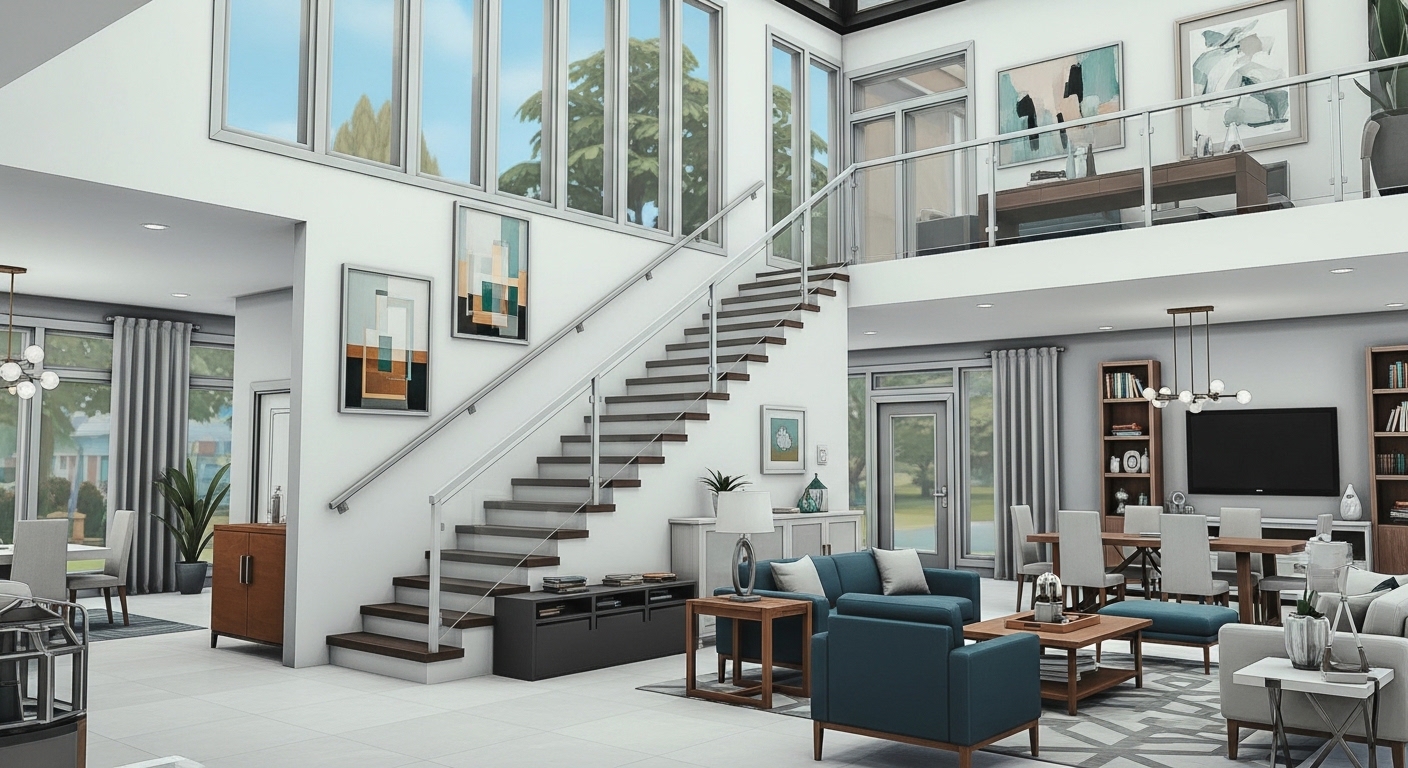
1. Modern Floating Staircase
- Remove one side railing.
- Place stairs next to a solid wall.
- Use glass or minimal railing on the open side.
Perfect for luxury homes.
2. Grand Entrance Staircase
- Use wide stairs.
- Add columns nearby.
- Match railings with balcony fencing.
- Decorate with tall windows.
This works beautifully in mansion builds.
3. Industrial Loft Stairs
- Use dark metal railing.
- Combine with exposed brick walls.
- Add platforms for split-level design.
The new railing flexibility makes this much easier.
4. Minimalist Open Concept
- No railings on one side.
- White stairs with clean lines.
- Half-wall divider near kitchen.
Ideal for Scandinavian-style homes.
Is This Update Worth It?
Absolutely.
For everyday players:
It improves visual realism and layout options.
For builders:
It removes one of the biggest creative restrictions in the base game.
For storytellers:
More realistic homes make screenshots and gameplay feel better.
Should You Rebuild Old Homes?
If you’re attached to older builds, you may want to:
- Revisit them.
- Update staircases.
- Improve transitions.
- Modernize layouts.
The new system makes even simple homes look more polished.
Beginner Advice After the Update
If you’re new to The Sims 4:
Don’t overcomplicate stairs at first.
Start simple:
- Straight staircase
- Basic railing
- Clean layout
Once comfortable, explore advanced designs.
Final Thoughts
The stairs update might not sound dramatic at first — but in a game built around creativity, small structural improvements make a big difference.
In The Sims 4, your home design tells a story. And now, that story has better flow between floors.
If you enjoy Build Mode, this is the perfect time to:
- Revisit old lots
- Try ambitious layouts
- Experiment with open staircases
- Share builds in the Gallery
The best way to understand the update?
Open Build Mode and start experimenting today.