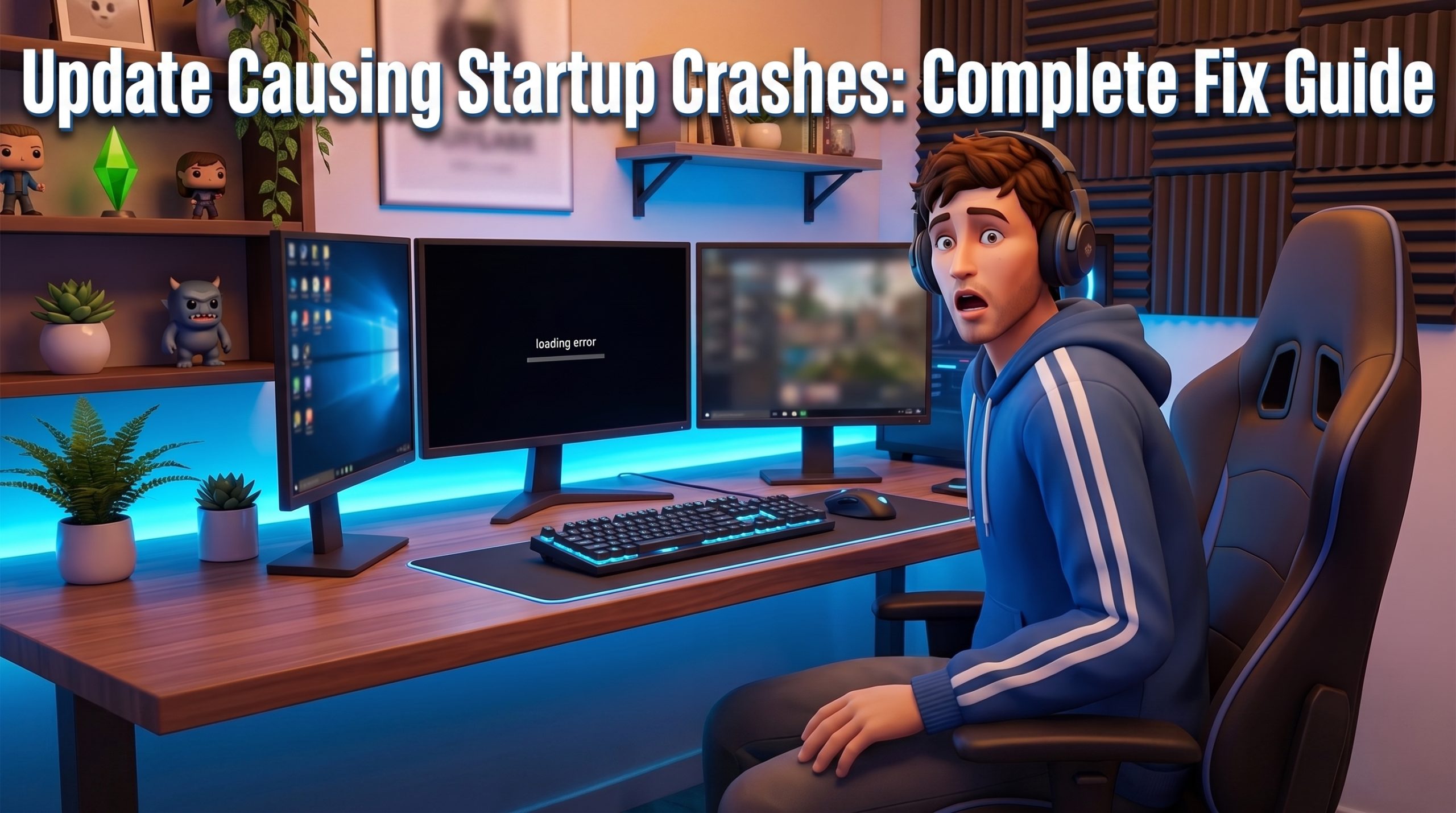
If you launched your game today expecting to play the newest game features or check out newly added pack content, only to be met with an immediate freeze, black screen, or return to desktop, you are dealing with the frustrating issue of sims 4 august 2026 update crashing on startup. Game patches inevitably change base engine code, refine user interfaces, and adjust core scripts. When these backend files update, existing custom content, outdated script mods, and cached game files can cause severe technical conflicts. Learning how to fix sims 4 crash after update errors requires a methodical approach to isolate broken files and reset your installation safely.
In this comprehensive troubleshooting guide, we will walk you through every established solution to resolve launch failures on both Windows PC and macOS. From identifying complex script failures to clearing hidden system caches and performing clean file repairs, this article gives you the exact tools needed to get your Simming back on track without losing your beloved family saves or built lots.
Why The Sims 4 Is Crashing After the August 2026 Update
Whenever Maxis and EA release a substantial patch for The Sims 4, the underlying game architecture undergoes structural modifications. Major patch cycles update the game’s internal Python script version, tweak UI rendering frameworks, and modify asset pointers. When the game attempts to boot, it reads through several configuration files and external assets stored in your Electronic Arts user folder. If any of those assets contradict the newly installed game binaries, the execution loop breaks, causing the application to close instantly without an error code.
Outdated Script Mods and UI Framework Conflicts
Script mods are deep-level modifications written in Python that interact directly with the game engine’s core instructions. When a patch alters how the game processes commands, existing script mods attempt to call functions or variables that no longer exist. This results in an unhandled exception during the initial loading sequence, forcing your operating system to kill the process.
Similarly, user interface (UI) mods alter how menus, build mode panels, and live mode HUD elements render. UI overhauls rely heavily on exact layout files. When a game patch introduces new menu buttons or reshuffles UI components, older UI mods overwrite critical interface code, leading to an immediate crash right as the Maxis logo appears.
Corrupted Game Caches and Stale User Data
As you play, The Sims 4 generates temporary temporary files to speed up loading times for items, Sim thumbnails, and online library assets. When a new game patch is installed, these cache files often still contain pre-patch references. When the updated executable attempts to parse outdated cache data, a conflict arises. Clearing these temporary cache files forces the game to build fresh, accurate pointers that match the updated game build.
Platform Client and File Lock Mismatches
The EA App and Steam act as digital rights management (DRM) wrappers for The Sims 4. During patch downloads, client errors can result in partially downloaded files, misplaced DLLs, or corrupted executable binaries. Additionally, background processes—such as third-party antivirus software or graphic overlay utilities—can put a lock on essential game files during the post-patch initialization process, mistaking the newly modified executable for an untrusted file.
Step 1: Remove Broken Mods and Custom Content
By far the most frequent culprit behind a post-patch launch failure is outdated modding content. If you encounter a situation where your sims 4 won’t launch august 2026 patch day, your primary focus should immediately shift to your Mods folder. Even if you only use “harmless” clothing or hair CC, batch updates often break file paths or conflict with newly added native items.
Isolating the Mods Folder Safely
Before deleting files or reinstalling anything, you must isolate your custom content from the core game structure to confirm whether a mod is indeed causing the crash. Follow these exact steps:
- Close The Sims 4 and terminate the EA App or Steam client completely via your Task Manager (PC) or Activity Monitor (Mac).
- Navigate to your main user directory:
Documents/Electronic Arts/The Sims 4. - Locate the folder named Mods.
- Right-click the Mods folder and select Cut (or press Cmd+C on Mac), then paste it directly onto your Desktop.
- Launch The Sims 4. If the game opens successfully to the main menu, your issue is 100% tied to sims 4 broken mods august 2026 update incompatibilities.
If you prefer a clean workspace while sorting out file issues, check out our guide on how to organize Sims 4 CC safely to streamline your folder setup for future patches.
The 50/50 Method for Locating Problem Files
If you have thousands of custom content files, manually testing each package file is impossible. The 50/50 method is the most efficient, logical strategy used by modders worldwide to isolate the exact broken file:
- Create a temporary folder on your desktop called “Testing Mods”.
- Move half of your mods from your Desktop backup back into the fresh, auto-generated
Documents/Electronic Arts/The Sims 4/Modsfolder. - Launch the game. If the game launches normally, that half of your mods is safe. Move them into a “Safe Mods” storage folder.
- If the game crashes on launch, you know the culprit resides within that specific half.
- Divide that problematic batch in half again and test. Repeat this process until you narrow down the exact package or script file causing the engine failure.
Common High-Risk Mods to Check First
While any outdated package file can cause an issue, specific categories of mods break with almost every major game update. Check the official download pages for updates to these specific types of mods before keeping them in your game:
- UI Mod Overhauls: Extensions like UI Cheats Extension, More Columns in CAS, Clean UI, and Better BuildBuy.
- Core Script Frameworks: MC Command Center, Tool Mod, XML Injector, and WickedWhims/WonderfulWhims.
- Custom Careers and Traits: Mods that add custom entries to the game’s core database structures.
- Custom Event Frameworks: Mods that modify party structures, active school days, or work routines.
Step 2: Repair Game Files via EA App and Steam
If your game continues to crash even after completely removing your Mods folder and clearing temporary user files, essential game installation files may have become corrupted during the update download process. Interrupted downloads, system sleep cycles, or disk writing errors can leave crucial assets incomplete. Performing a client repair forces your launcher to verify every base file against official cloud checksums.
How to Repair Game Files via EA App
For players using the native EA desktop client on Windows or macOS, learning how to properly execute a file check is essential. Follow these instructions to perform an official fix:
- Open the EA App on your computer.
- Click on My Collection on the left sidebar to bring up your game library.
- Find The Sims 4 tile and click on the three-dot menu icon located in the upper right corner of the tile (or on the game’s overview page).
- Select the Repair option from the drop-down menu.
- Wait patiently while the application scans your installation directory. The EA App will compare your local files against current server manifests, re-downloading any corrupted or missing files automatically.
Once the app finishes, you will see a notification stating that the game is ready to play. It is advisable to restart your computer before launching the game to ensure all new files are unlocked by the operating system.
How to Repair Game Files via Steam
If you run The Sims 4 through Steam, file integrity is managed directly through Steam’s local storage tools rather than the secondary launcher wrapper:
- Open your Steam Library.
- Right-click on The Sims 4 in your left-hand game list and select Properties.
- In the menu that appears, navigate to the Installed Files tab.
- Click the button labeled Verify integrity of game files.
- Steam will cross-reference your local files with official game manifests. This process typically takes between 3 to 10 minutes depending on your storage drive speed.
If any corrupted core files are detected, Steam will automatically queue a fresh download for those specific assets, restoring your engine files to a healthy default state.
Step 3: Clear The Sims 4 Cache Folders
A major cause for persistent launch failure is accumulated cache clutter. Over months of play, the game caches temporary assets to reduce loading screen times. However, during major structural updates—such as those introduced in the August 2026 update—stale cache entries conflict directly with new engine commands, forcing the client to shut down during boot.
Clearing these cache files is completely safe and will not impact your saved games, household builds, or custom content settings. The game automatically re-creates pristine versions of these files the next time it boots successfully.
Deleting Game-Level Cache Files
Open your computer’s File Explorer (Windows) or Finder (Mac) and navigate to your user profile directory located at Documents/Electronic Arts/The Sims 4. Carefully remove or clear the following specific items:
- localthumbcache.package: This file stores temporary image data for Sims, clothing, and build mode thumbnails. It is the single most important cache file to delete after any update or mod installation.
- cache folder: Open this folder and delete all files inside ending in
.cacheor.tmp. Do not delete the actual empty folder itself. - cachestr folder: Open this folder and delete everything found inside.
- onlinelocalbytes: Delete this file if it appears in your main Sims 4 directory; it holds temporary gallery account authentication data.
- avatarcache: If present, delete this file to force the game to rebuild fresh avatar graphics pointers.
For more detailed step-by-step guidance on safely cleaning out clutter from your Electronic Arts folder, see our dedicated tutorial on managing script mods in The Sims 4.
Clearing Launcher Client Cache (EA App)
Sometimes, the corruption resides inside the launcher app itself rather than the game directory. Stale cache within the EA App can prevent updates from registering correctly, causing launch errors.
- Click the top-left menu icon (three horizontal lines) inside the EA App window.
- Hover over Help and click on App Recovery.
- A pop-up prompt will appear. Click the button labeled Clear Cache.
- The EA App will automatically close, clear its background data files, and relaunch itself. Log back into your account if prompted.
This process flushes out bad session credentials and corrupt download manifests, ensuring the app launches the game using updated build commands.
Step 4: Update Graphics Drivers and System Software
When game updates change rendering options, memory optimization algorithms, or visual settings, they often depend on updated display drivers provided by GPU manufacturers. If your display drivers are out of date, severe hardware conflicts can arise during game initialization. Providing a proper sims 4 startup crash fix pc mac solution requires addressing your graphics hardware and system dependencies.
If you experience the sims 4 august 2026 update crashing on startup even after performing file repairs and clearing game caches, outdated GPU software is likely failing to parse the engine’s updated graphics calls.
Updating Graphics Card Drivers on Windows
Windows PCs utilize discrete GPUs from NVIDIA, AMD, or integrated solutions from Intel. Installing dedicated manufacturer drivers resolves display handshaking issues during boot screens:
- NVIDIA Graphics: Open the NVIDIA App or GeForce Experience application. Go to the Drivers tab, click Check for Updates, and perform an Express Installation if a new Game Ready Driver is available.
- AMD Graphics: Open AMD Software: Adrenalin Edition. Click on the System tab to check for driver revisions and run the automatic installer.
- Intel Integrated Graphics: Download and run the Intel Driver & Support Assistant from Intel’s official website to detect and install the latest display drivers for your processor.
Avoid relying solely on Windows Update for display drivers, as Microsoft’s utility often deploys generic versions lacking optimized game compatibility profiles.
System Updates and Visual C++ Redistributables
The Sims 4 requires modern operating system dynamic link libraries (DLLs) to function correctly. Ensure your Windows OS is fully updated by visiting Settings > Windows Update and running a check for updates.
Additionally, missing or corrupt Visual C++ Redistributable packages frequently cause immediate game startup crashes (often with errors mentioning `MSVCP140.dll` or `VCRUNTIME140.dll`). You can download and install the latest combined Visual C++ Redistributable packages directly from Microsoft’s support page to rebuild those dependencies.
macOS Hardware Compatibility and Metal API Issues
Mac users do not install separate graphics drivers; instead, GPU updates are tied directly to macOS system software updates. If you are experiencing launch issues on Mac after the August patch:
- Click the Apple Menu in the top-left corner of your screen and select System Settings.
- Navigate to General and click Software Update.
- Install any pending system updates to ensure your Mac has the latest Metal graphics API adjustments.
Ensure that third-party Mac overlay utilities, such as screen recording tools or display management apps, are disabled, as they can conflict with Metal API initialization routines when launching the game.
Disabling Conflicting Background Programs and Overlays
Even with clean game files and updated drivers, active background applications can inject code into The Sims 4 process during boot up, resulting in instantaneous crashes. Disabling these invasive background processes provides an immediate window to test engine stability.
Disabling In-Game Overlays
In-game overlay hooks provided by communication tools and gaming clients are notorious for interrupting startup loading scripts. Turn off overlays across all active applications:
- EA App Overlay: Open EA App settings, go to the Application tab, scroll down to In-game overlay, and toggle the switch to Off.
- Steam Overlay: Open Steam, go to
Settings > In Game, and uncheck “Enable the Steam Overlay while in-game”. - Discord Overlay: Open Discord, go to
User Settings > Game Overlay, and disable the overlay toggle switch. - GeForce Experience Overlay: Open NVIDIA software, enter settings, and switch off the ShadowPlay/In-Game Overlay option.
Configuring Antivirus and Firewall Exceptions
Security software often flags game updates as suspicious behavior because the patch modifies executable binaries (`TS4_x64.exe`). If your antivirus places a temporary file lock on these updated executables, the game crashes immediately upon opening.
To fix this conflict, open your security software settings (such as Windows Defender, Avast, AVG, or Bitdefender) and add the following paths to your trusted exclusions list:
C:\Program Files\EA Games\The Sims 4\Game\Bin\TS4_x64.exe(Default installation location)C:\Users\[Your Username]\Documents\Electronic Arts\The Sims 4
Adding these exclusion rules prevents your antivirus software from scanning or locking live game processes during initialization.
How to Prevent Future Game Crashes After Patch Updates
Dealing with system crashes and broken files on patch day can be frustrating, but taking proactive steps can help keep your game running smoothly during future update cycles. By setting up a preventative maintenance routine, you can update your game with confidence and protect your save files.
Disable Automatic Game Updates Before Patch Days
One of the best habits to form is disabling auto-updates in your launcher client. This allows you to delay installing new patches until you have backed up your save files and verified that your essential script mods have been updated by their creators.
- In the EA App: Click the top-left menu icon, select Settings, navigate to the Application tab, and disable Automatic game updates.
- In Steam: Right-click The Sims 4 in your Library, select Properties, go to Updates, and change the drop-down menu to “Only update this game when I launch it”.
When an update releases, simply launch your client in offline mode to continue playing safely on your existing patch version until your mods are fully updated.
Establish a Robust Pre-Patch Backup Routine
Before allowing any update to install, establish a habit of creating safe backups of your essential user data. Keep an external flash drive or dedicated cloud folder for these manual backups.
- Navigate to
Documents/Electronic Arts/The Sims 4. - Copy the Saves folder and paste it into your external backup directory.
- Copy the Tray folder (which holds your saved builds and household library creations) to your backup directory.
- Copy your custom settings file named
Options.inito preserve your preferred graphics and audio settings.
If an update ever causes irrecoverable corruption in your user profile, you can easily restore these backup folders to return your game to its pre-patch state without losing any save progress.
Use Dedicated Mod Status Trackers
Rather than randomly adding mods back into your game through trial and error after a major update, monitor official status updates provided by the modding community. Platforms such as the official Sims Forums, ScarletsRealm Mod Status Database, and creator Patreon pages maintain detailed lists tracking which mods are confirmed broken, updated, or safe to use after every patch cycle.
Frequently Asked Questions
Why won’t my Sims 4 open after the latest update?
The game usually fails to open after a major patch due to outdated script mods, broken user interface custom content, or corrupted cache files lingering in your user profile. When base engine code changes during an update, older custom content files cause script errors that prevent the game from loading. Additionally, download disruptions can result in missing or corrupted core installation files that require a launcher repair.
How do I know which mod is causing my Sims 4 game to crash?
The most reliable way to identify a game-crashing mod is by using the 50/50 testing method. Remove your entire Mods folder onto your Desktop, then place half of your mods back into the game directory and launch the game. If it boots successfully, that half is safe; if it crashes, the culprit is in that batch. Repeat this process by halving the broken batch until you pinpoint the exact file causing the crash.
Will repairing The Sims 4 delete my saved games?
No, repairing The Sims 4 via the EA App or Steam will not delete your saved games, tray library items, or installed custom content. The repair function strictly checks and fixes core installation files located in your application installation directory. Your personal save data is stored separately inside your Documents/Electronic Arts/The Sims 4 folder, which remains completely untouched during a repair operation.
What should I do if clearing cache and removing mods does not work?
If clearing cache folders and completely removing your Mods folder fails to resolve launch crashes, perform a clean reset of your game options folder. Rename your Documents/Electronic Arts/The Sims 4 folder to “The Sims 4 Backup”, then boot the game to force it to build a fresh, factory-default user directory. If the game still crashes, perform a clean reinstall of your graphics card drivers and verify that background overlay programs like Discord or EA App overlays are completely disabled.
Restoring Game Stability and Getting Back to Playing
Encountering a system crash right after an exciting game patch can be frustrating, but these issues are almost always caused by simple file conflicts rather than permanent game bugs. By systematically isolating your custom content, clearing out stale local cache folders, verifying file integrity via the EA App or Steam, and keeping your graphics drivers up to date, you can reliably resolve the sims 4 august 2026 update crashing on startup bug and restore smooth performance to your game installation.
Remember that preventative habits—such as backing up your Saves and Tray folders before installing new updates, turning off automatic client downloads, and checking community mod status lists—will save you hours of technical troubleshooting on future patch days. Take the time to clean out outdated files, update your core script modifications, and enjoy all the newest features and improvements available in The Sims 4!