The The Sims 4 September 2026 Update has arrived with Patch 1.128.90.1030 for PC, and players who use Mods and Custom Content have an important extra step to take after installing it. The September 22 update includes more than 95 bug fixes, improvements to Sim autonomy, relationship systems, stability, infants, Build Mode and other gameplay features. However, EA also reported that an outdated mod was connected to its top automated crash report during the investigation for this patch, making Mods and CC compatibility one of the most important things to check after updating.
If you opened The Sims 4 after the September update and noticed that your Mods disappeared, Custom Content is no longer visible, or a gameplay mod suddenly stopped working, this does not necessarily mean that your files have been deleted. The game can disable Mods after an update as a precaution. The bigger issue is whether the individual Mods you use have been updated by their creators for the new game version.
This guide explains what happened to Mods and CC after the September 2026 patch, why EA disables them, what the crash reports mean, how to check your Mods folder, and how to safely return to a modded game without damaging an important save.
What Happened to Mods and CC After the September 2026 Update?
The first thing to understand is that the September update did not simply “break all Mods.” There is an important difference between the game disabling Mods after an update and a particular Mod becoming incompatible with the new game version.
EA explains that Mods are disabled after game updates because a Mod that worked correctly before a patch can potentially cause problems after the game’s files or systems change. EA does not pre-screen or officially support individual Mods or Custom Content, so players are responsible for checking whether their installed files are compatible with the current version of The Sims 4.
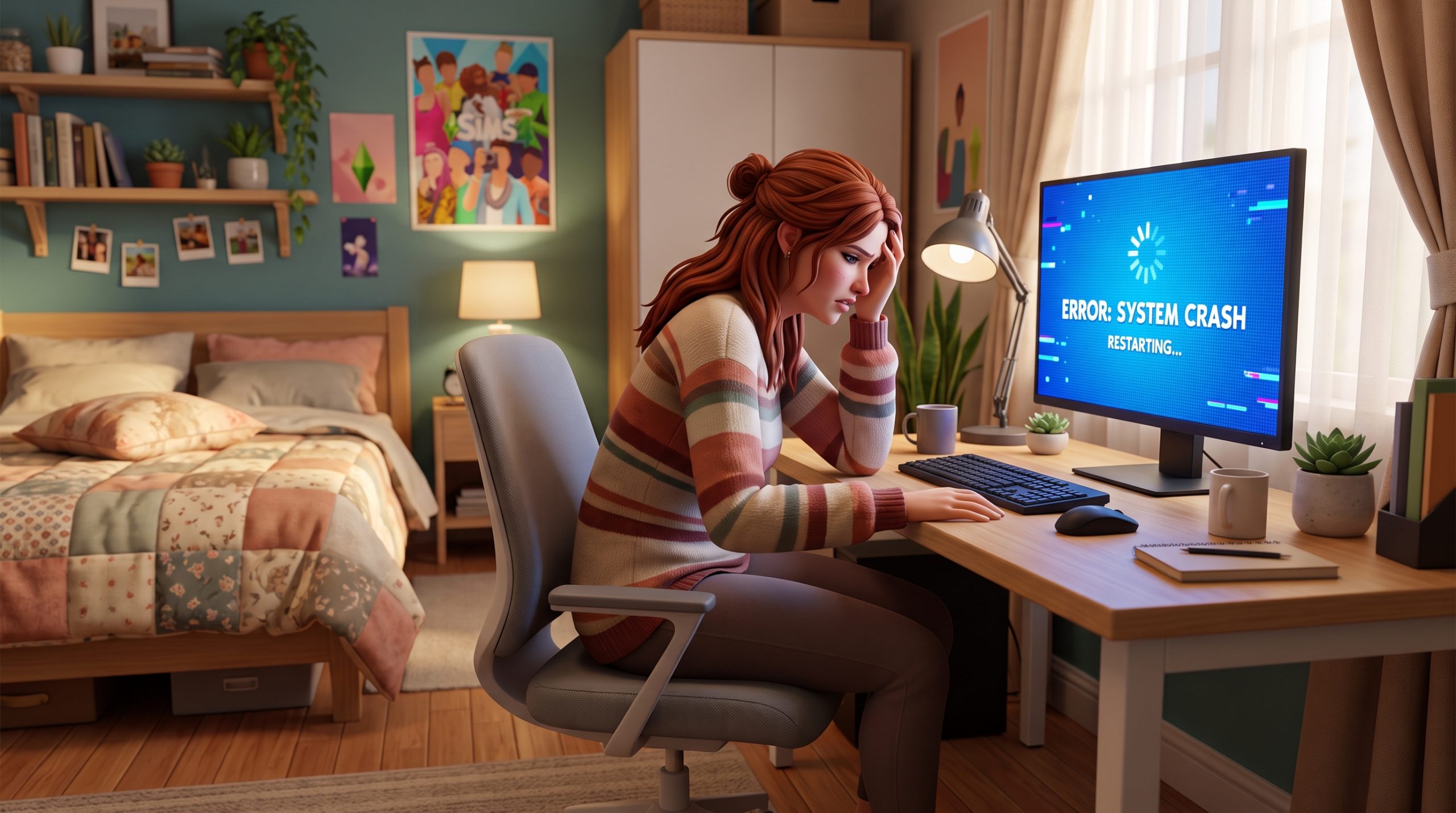
The September 2026 patch is especially worth checking carefully because EA identified outdated mod files as the source of its top automated crash report during the team’s investigation. The official patch notes also state that an outdated mod was causing memory corruption for a moderate number of players.
That does not mean every player using Mods will experience a crash. It means that outdated or incompatible files can create problems, and players should not immediately restore an old Mods folder without checking it.
Did The Sims 4 September 2026 Patch Break Mods?
Some Mods may be broken or require updates after Patch 1.128.90.1030, but there is no single list that can accurately say that every Mod is broken.
Gameplay Mods are generally more vulnerable to game updates because they can modify or interact with the game’s tuning, interactions, autonomy, UI, careers, relationships, traits and other systems. When EA changes one of those systems, a Mod that depends on the old behavior may stop working correctly.
The September patch is particularly relevant to gameplay Mods because Sim autonomy received dozens of adjustments. EA changed how Sims handle conversations, sinks, dancing, phone use, gardening and several other autonomous actions. The patch also includes relationship balancing and technical changes that Mod creators may need to account for.
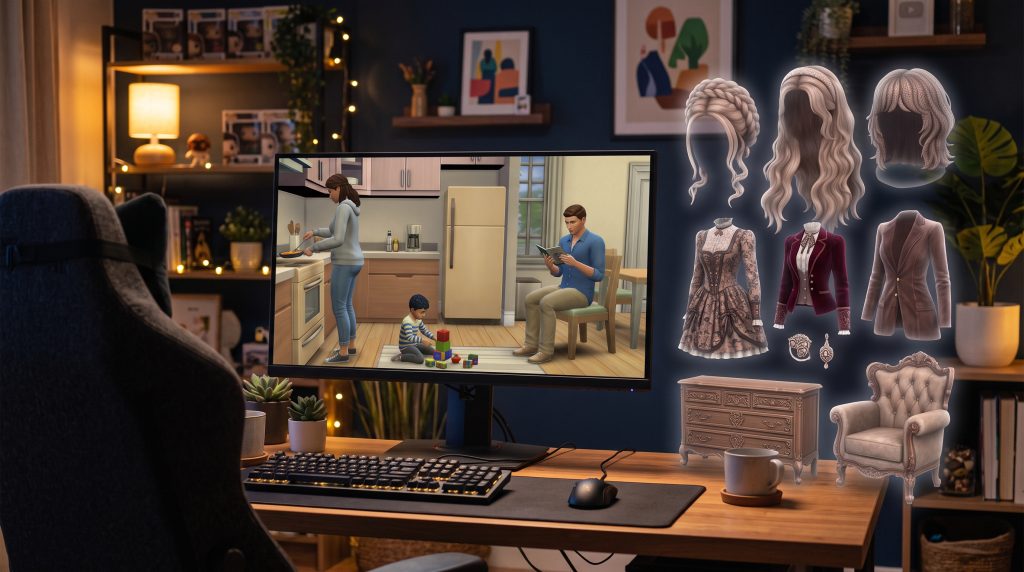
Custom Content is often less affected when it consists only of visual assets such as clothing, hair, furniture or decorations. However, CC can still become incompatible depending on how it was created and which game resources it uses.
For that reason, “CC is always safe after a patch” is not a reliable rule. The safest approach is to check creators’ compatibility information for both Mods and CC.
Why Does The Sims 4 Disable Mods After an Update?
The automatic disabling of Mods is a protective measure.
EA explains that a Mod that worked normally before an update can cause problems after the game changes. To reduce the chance of players launching directly into a potentially unstable modded game, The Sims 4 disables Mods and Custom Content following an update.
This can make it look as though all your Mods have disappeared.
They usually have not.
Your files should still be located in your Mods folder unless something else happened to your installation. What changes is the game’s setting that controls whether Custom Content and Mods are loaded.
After you have confirmed that the game works correctly without Mods, you can re-enable them through Game Options > Other > Enable Custom Content and Mods. EA recommends checking compatibility first rather than immediately turning everything back on.
What the September Patch Changed That Can Affect Mods
The The Sims 4 September 2026 Update contains several technical and gameplay changes that are relevant to Mod creators.
The biggest theme of the patch is Sim autonomy. EA changed several autonomous behaviors, including how Sims interact socially and how they choose certain activities. Sims now face each other during conversations, use a more appropriate sink for washing their hands, and have adjusted behavior around dancing and other activities.
The patch also includes changes connected to interaction routing. EA modified several interactions so Sims can navigate to the correct location for social interactions.
There are also technical notes specifically aimed at Modders. EA documents changes to interaction tuning, autonomy behavior and other internal systems so creators can identify areas that may affect their Mods.
This is why a Mod can appear to be working but still produce unexpected behavior after a patch. A game update does not necessarily need to completely remove a feature for a Mod to become incompatible.
The September Patch Also Found a Mod-Related Crash
One of the most important pieces of information for Mod users comes directly from EA’s crash investigation.
During development and testing of the September update, EA reported that its top automated crash report was connected to a conflict with outdated mod files. The official patch notes also mention a specific Base Game issue involving a Mod that was corrupting memory and affecting a moderate number of players.
This is significant because it shows that outdated Mods were not merely causing small visual glitches in this particular case.
A Mod conflict can potentially affect memory and game stability.
That is why players should be cautious about simply re-enabling every old Mod immediately after updating to Patch 1.128.90.1030.
The problem may not appear immediately. A game can launch normally and still develop crashes, missing interactions, broken UI elements or strange Sim behavior later when a specific feature is used.
How to Check Your Mods After Patch 1.128.90.1030
Before returning to a heavily modded save, start with a clean test.
First, make sure your game has installed the September 2026 patch. On PC, the version should be 1.128.90.1030. The Mac version is 1.128.90.1230, while consoles use Version 2.39.
Next, launch the game with Mods disabled.
Do not immediately start experimenting with your most important save. Instead, enter Live Mode and check whether the unmodded game behaves normally.
Test a few basic things: load a household, move Sims around, use common objects, open Build Mode, enter CAS if necessary, and observe whether the game remains stable.
EA specifically recommends checking that the game works correctly with Mods disabled before re-enabling them.
This gives you a clean baseline.
If the game crashes or behaves incorrectly even without Mods and CC, the problem may be related to the Base Game, the patch, a save, or another issue rather than an individual Mod.
How to Find Broken Gameplay Mods
After confirming that the game works without Mods, the next step is checking your installed files.
Start with gameplay Mods that directly change core systems.
These can include UI Mods, script Mods, autonomy Mods, relationship Mods, career Mods, trait Mods, interaction Mods, tuning Mods and other files that change how the game behaves.
Visit the creator’s official download page or update announcement and check whether the creator has confirmed compatibility with the September 2026 patch.
Do not rely only on the filename.
A Mod can have a familiar name while still being an old version. If the creator provides a new file specifically for Patch 1.128.90.1030 or the September 2026 update, replace the old version according to the creator’s instructions.
If the creator has not confirmed compatibility yet, keeping that Mod disabled is the safer choice.
EA also recommends contacting or checking with the Mod creator when a Mod causes problems, and provides troubleshooting guidance for identifying problematic files.
What About Custom Content?
Custom Content deserves a slightly different approach.
If you primarily use decorative objects, furniture, hairstyles, clothing and other visual CC, you may find that much of it continues to work normally after the September update.
However, that does not guarantee compatibility for every CC file.
Some Custom Content can depend on game resources that change during patches. Certain advanced CC may also include functionality beyond a simple visual replacement.
The safest strategy is to separate your Mods from your CC and test them independently.
For example, you can temporarily move gameplay Mods out of the Mods folder while leaving a small selection of known-safe CC for testing. If the game works correctly, gradually add content back.
This makes it much easier to identify the file responsible if something goes wrong.
Should You Delete Your Mods Folder?
Usually, there is no reason to immediately delete your entire Mods folder.
Deleting everything makes troubleshooting harder because you lose the organization that could help you identify problematic files.
Instead, make a backup of the folder and your saves before making major changes.
Then remove or move outdated gameplay Mods temporarily and test the game.
If you have hundreds or thousands of files, organize them into clearly named folders. Keep gameplay Mods separate from CAS CC, Build/Buy CC and script-based Mods.
This will not guarantee compatibility, but it can make future patch maintenance considerably easier.
Important: Do Not Save Your Main Game While Testing
One of the most important precautions after an update is avoiding accidental changes to a valuable save while Mods or CC are disabled.
EA warns players to close the game without saving after testing with Mods disabled. If you save while Custom Content or Mods are disabled, content associated with your modded household or lot can be affected.
A safer testing sequence is simple:
Launch the game with Mods disabled, load a test situation, check that the game works, and then exit without saving.
After that, check your Mod creators for compatibility updates.
Once you are ready, re-enable compatible Mods and restart the game.
Then test again.
This gives you a cleaner way to separate problems caused by the patch from problems caused by outdated Mods.
How to Re-Enable Mods After the September Update
Once you have checked your files, EA’s process for re-enabling Mods is straightforward.
Open Game Options, select Other, and enable Custom Content and Mods. After enabling the setting, exit and relaunch the game so the changes take effect.
Do not assume that turning the setting back on means every Mod is compatible.
The setting only allows the game to load the files.
Compatibility still depends on the individual Mod or CC creator.
After restarting, test the game before loading your most important long-running save. If you experience crashes, missing interactions, unusual UI behavior or other problems, remove recently restored Mods and test again.
What If My Mods Still Don’t Work?
If a Mod still does not work after the September 2026 update, check the creator’s latest information first.
The Mod may simply need an updated version.
If no update is available, temporarily remove it and test the game again. If the problem disappears, you have a strong indication that the Mod is involved.
It is also worth checking whether the Mod has dependencies. Some Mods require additional libraries or framework files, and updating only one component may not be enough.
For UI Mods in particular, wait for a version specifically confirmed for the current game patch before assuming that the old version is safe.
The same principle applies to large gameplay systems that touch multiple parts of the game.
Are All Mods Broken in September 2026?
No.
There is an important difference between saying “Mods are disabled” and “all Mods are broken.”
EA’s system disables Mods after an update as a precaution. That does not mean every Mod has become incompatible. Some Mods may continue working without noticeable problems, while others may require an update.
The September patch does, however, provide a particularly strong reason to check your files because EA specifically identified outdated mod files in its crash investigation.
The best approach is therefore not to panic and delete everything.
Instead, update, back up, test, check creators, and restore compatible files gradually.
What Sims 4 Players Should Do Right Now
If you are updating to The Sims 4 September 2026 Update, the safest routine is:
Back up your Saves and Mods folders before changing anything.
Launch the game with Mods disabled.
Confirm that the Base Game works normally.
Do not save over an important modded save during the clean test.
Check every important gameplay Mod for a September 2026 compatibility update.
Pay particular attention to UI, script, autonomy, interaction and tuning Mods.
Test Custom Content separately when possible.
Re-enable only compatible Mods.
Restart the game after enabling Mods and CC.
Test before returning to your main long-running save.
This process may take some time, but it can save considerably more time than trying to diagnose a heavily modded game where dozens of outdated files were restored simultaneously.
Final Thoughts
The The Sims 4 September 2026 Update did not simply destroy Mods and Custom Content across the board. Instead, the game disabled Mods as part of its normal post-update protection, while the September patch introduced enough gameplay and technical changes that compatibility checks are important.
The biggest warning comes from EA’s own crash investigation: outdated mod files were connected to the top automated crash report, and a Base Game issue involving a Mod that was corrupting memory was also addressed.
For players using Mods and CC, Patch 1.128.90.1030 is therefore a good reason to clean up the Mods folder, check creators for updated versions and test the game carefully.
The good news is that you do not need to abandon your modded game. Most of the process is simply maintenance: back up your files, test without Mods, update incompatible files, restore compatible content and avoid saving important households while troubleshooting.
If a Mod has not yet been updated for the September 2026 patch, the safest option is to leave it disabled until its creator confirms compatibility. EA’s official guidance also recommends checking creator information before re-enabling Mods and Custom Content after an update.
With the September patch focusing heavily on autonomy, interactions, relationships and stability, keeping your Mods up to date is especially important. Once your files are confirmed compatible, you can return to your usual gameplay with a much better chance of avoiding the crashes, broken interactions and unexpected behavior that outdated Mods can cause.