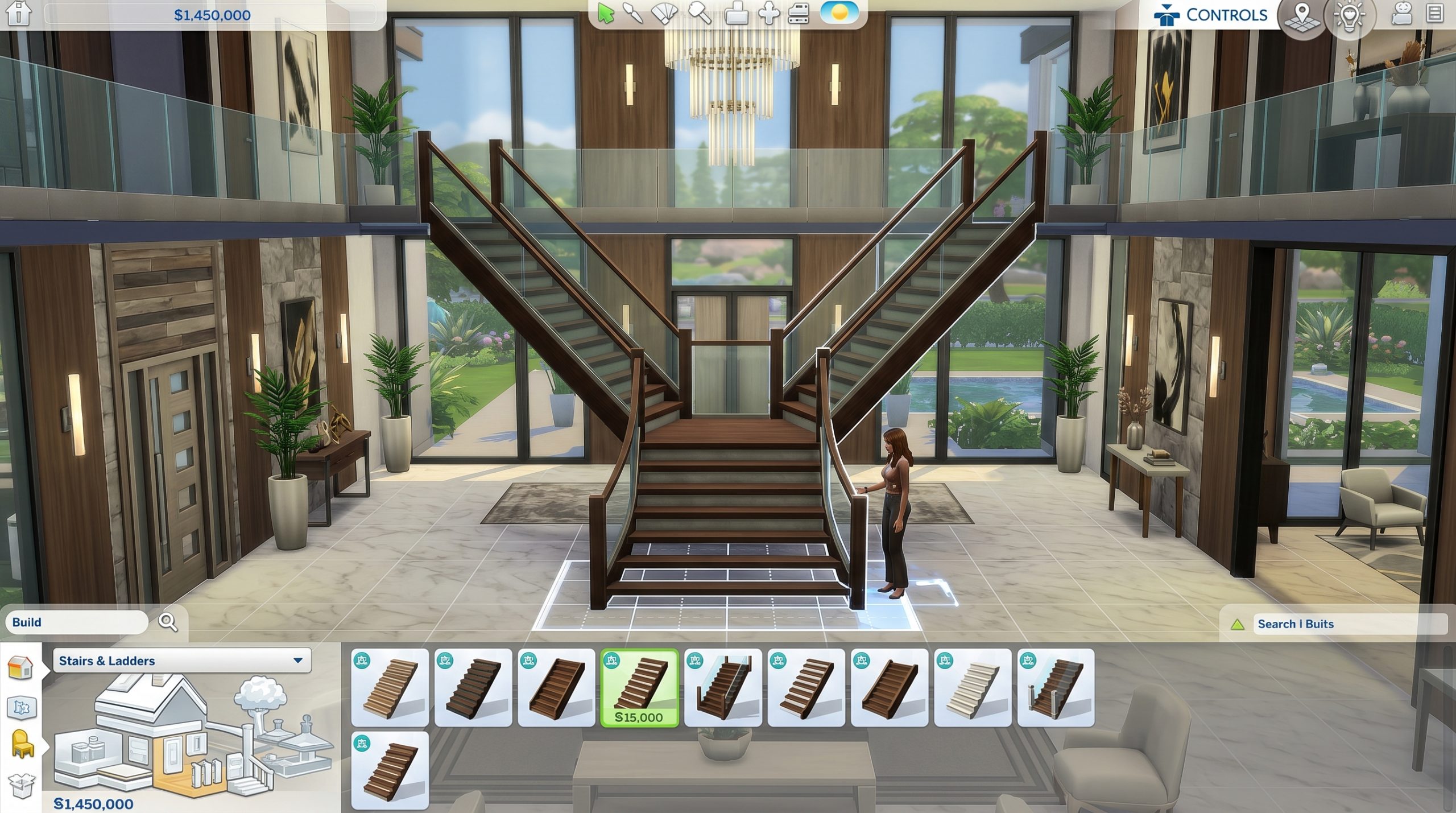

The continues to evolve even years after its release, and the April 2026 update is one of the most talked-about patches in recent months. Whether you’re a casual builder, storyteller, or gameplay-focused player, this update introduces important fixes, new features, and performance improvements that impact how the game feels and runs.
In this complete 2026 guide, you’ll learn everything included in the update, what changed, what broke (yes, mods…), and how to get the most out of the latest version.
Overview of the April 2026 Sims 4 Update
The April 2026 patch focuses on three main areas:
- Performance optimization
- Gameplay improvements
- Bug fixes and stability
Unlike expansion-heavy updates, this one is more about refining the experience rather than adding entirely new worlds or packs.
However, don’t underestimate it — many players report faster loading times, fewer crashes, and smoother gameplay overall.
Major Changes in the April 2026 Update
1. Improved Game Performance
One of the biggest highlights is improved performance, especially for players with:
- Large save files
- Heavy mod usage
- Older PCs or laptops
What’s improved?
- Faster loading screens
- Reduced lag in Build/Buy mode
- Better memory usage
- Smoother camera movement
The developers behind and Maxis focused on optimizing how the game handles assets and background processes.
2. Loading Screen Optimization
Loading screens have been a long-standing complaint in The Sims 4, and this update finally addresses that.
Changes include:
- Reduced loading times between lots
- More stable transitions between worlds
- Fewer infinite loading screen bugs
This directly helps players who previously experienced the “stuck at loading” issue.
3. Bug Fixes That Actually Matter
This patch fixes dozens of bugs — here are the most noticeable ones:
Gameplay fixes
- Sims no longer freeze randomly during actions
- Relationships update more consistently
- Careers progress without glitches
UI fixes
- Menus open faster
- Less lag when switching tabs
- Improved responsiveness
Build/Buy fixes
- Objects no longer disappear randomly
- Grid snapping works more reliably
- Catalog loads faster
4. Changes to Mods and Custom Content
If you use mods, this section is critical.
What changed?
- Some scripts are now handled differently
- UI mods are more likely to break
- Old custom content may cause crashes
After the update, many players found that:
- The game wouldn’t load
- It crashed at startup
- Mods stopped working completely
What you should do
After updating:
- Remove your Mods folder
- Launch the game once
- Update mods from creators
- Add them back gradually
This is the safest way to avoid issues.
New Features (Small but Useful)
While this update isn’t feature-heavy, it introduces a few small but helpful additions.
1. Improved Save System
- Faster save times
- Reduced risk of corrupted saves
- More stable long-term gameplay
2. Background Optimization
The game now handles:
- NPC generation more efficiently
- World loading in the background
- Less CPU usage when idle
3. Better Error Handling
Instead of crashing instantly, the game now:
- Recovers from minor errors
- Prevents total freezes
- Logs issues more clearly
How to Update Sims 4 (Step-by-Step)
To get the April 2026 update, you need the official launcher.
Using the
- Open the EA App
- Go to your Library
- Find The Sims 4
- Click Update
If updates are automatic, it may already be installed.
Common Problems After the Update
Even though the update improves stability, some players experience issues.
1. Sims 4 Not Loading
This is usually caused by:
- Broken mods
- Cache conflicts
- Outdated files
Quick fix:
- Remove Mods folder
- Delete cache files
- Repair the game
2. Game Crashing on Startup
Possible causes:
- Driver issues
- Conflicting software
- Corrupted files
Fix:
- Update GPU drivers (NVIDIA, AMD, Intel)
- Run the game as administrator
- Repair the game in EA App
3. Infinite Loading Screen
Still happens in some cases.
Fix:
- Clear cache
- Reset Sims 4 folder
- Disable mods
Best Settings After the Update
To get the best performance, adjust these settings:
Graphics Settings
- Laptop: Medium
- Mid-range PC: High
- High-end PC: Ultra
Performance Tips
- Disable unnecessary background apps
- Turn off V-Sync if experiencing lag
- Limit FPS if overheating
Tips for Mod Users (Important)
Mods are a huge part of The Sims 4, but updates can break them.
Best practices:
- Always backup your Mods folder
- Check mod updates after every patch
- Avoid outdated script mods
Popular creators usually update within a few days.
Is the April 2026 Update Worth It?
Short answer: Yes — especially for performance.
Pros
- Faster loading times
- More stable gameplay
- Fewer crashes
- Better optimization
Cons
- Mods may break
- Some bugs still exist
- Requires troubleshooting for mod users
Future Expectations
Based on this update, we can expect:
- More optimization patches
- Continued support for older systems
- Possibly a new expansion later in 2026
The team behind Electronic Arts is clearly focusing on long-term stability.
Final Thoughts
The Sims 4 April 2026 update is not flashy, but it’s extremely important. It improves the core experience in ways that players have been requesting for years.
If you’ve had issues with:
- Loading screens
- Lag
- Crashes
This update may finally fix them.
However, if you rely on mods, be prepared to spend some time updating and troubleshooting.
- sims 4 update guide 2026
- sims 4 patch notes april 2026
- sims 4 latest update changes
- sims 4 performance update
- sims 4 update ea app
- sims 4 new patch features
- sims 4 optimization update
FAQ Section
What is included in the Sims 4 April 2026 update?
The update includes performance improvements, bug fixes, better loading times, and stability enhancements.
Does the update break mods?
Yes, many mods may stop working until updated by their creators.
How do I fix Sims 4 after the update?
Remove mods, clear cache files, and repair the game using the EA App.
Is Sims 4 faster after the update?
Yes, many players report faster loading and smoother gameplay.