Introduction
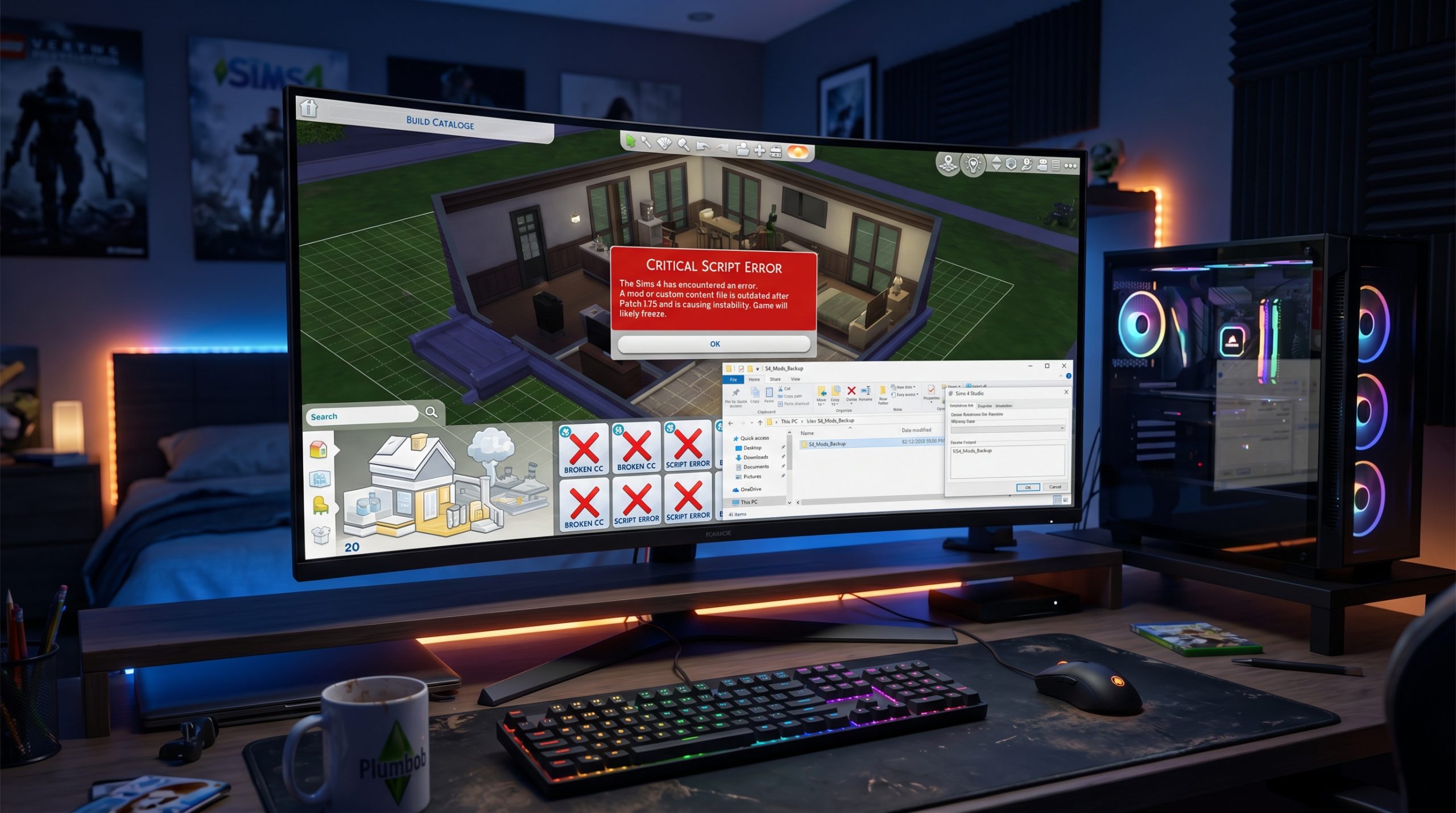
Every major update for brings new content, bug fixes, and gameplay improvements. Unfortunately, patches also tend to break mods and custom content. After Patch 1.124, many players reported issues including broken UI menus, infinite loading screens, missing interactions, crashes, corrupted saves, and malfunctioning scripts.
If your game suddenly stopped working after updating, you are not alone. The good news is that most Sims 4 mod problems after Patch 1.124 can be fixed relatively quickly by following the correct troubleshooting steps.
This guide explains exactly how to fix Sims 4 mods after Patch 1.124, including how to identify broken mods, clear cache files, repair the game, update script mods, protect save files, and avoid future update issues. Whether you use only a few mods or hundreds of custom content files, these solutions will help restore your game.
Why Sims 4 Mods Break After Updates
Game Patches Change Core Files
Every Sims 4 patch modifies internal game systems. Script mods and UI mods rely on these systems to function correctly. When the game code changes, outdated mods can no longer communicate with the game properly.
This is why major updates often break:
- UI mods
- Script mods
- Gameplay overhauls
- CAS extensions
- Trait mods
- Relationship systems
- Career mods
Simple cosmetic CC like hair, furniture, and clothing usually survives updates better than gameplay-related mods.
Patch 1.124 Changed Multiple Systems
Patch 1.124 introduced backend gameplay adjustments, UI improvements, and performance changes. Because of this, many popular mods became temporarily incompatible.
Players commonly experienced:
- Endless loading screens
- Missing menus
- Blank UI panels
- Sims refusing commands
- Build Mode glitches
- Save corruption warnings
- Crashes during CAS loading
First Step: Disable Mods Immediately
Turn Off Mods Before Launching
If your game crashes immediately after updating, start by disabling all mods.
How to Disable Mods
- Open The Sims 4
- Go to Game Options
- Select “Other”
- Disable:
- Enable Custom Content and Mods
- Script Mods Allowed
- Restart the game
If the game launches normally afterward, your mods are the source of the problem.
Back Up Your Saves Before Troubleshooting
Never Skip This Step
Before deleting or testing anything, create a backup of your saves folder.
Save Folder Location
Documents > Electronic Arts > The Sims 4 > saves
Copy the entire “saves” folder to another location on your PC or external drive.
This protects your households in case corrupted mods damage your game files further.
Delete the localthumbcache.package File
The Most Important Quick Fix
One of the easiest and most effective fixes after Patch 1.124 is deleting the cache file.
File Location
Documents > Electronic Arts > The Sims 4
Delete:
- localthumbcache.package
This file stores outdated mod data and can cause:
- Broken UI
- Infinite loading
- Interaction glitches
- CAS problems
The game automatically creates a fresh cache file on next launch.
Update All Script Mods
Old Script Mods Cause Most Problems
Script mods are the primary reason Sims 4 breaks after patches.
Common examples include:
- MC Command Center
- UI Cheats Extension
- WonderfulWhims
- Basemental Mods
- Better BuildBuy
- TOOL Mod
- Relationship & Pregnancy Overhauls
If these are outdated, the game may become unstable immediately.
Download Updated Versions
Visit the official creator pages and download Patch 1.124 compatible versions.
Never rely on old backups or reposted files from random websites.
The 50/50 Method Explained
Best Way to Find Broken Mods
If you use hundreds of mods, identifying the broken file manually can feel impossible. The 50/50 method is the safest and fastest solution.
How the 50/50 Method Works
- Remove all mods from the Mods folder
- Add back half
- Launch the game
- Test for issues
- If the game works:
- The broken mod is in the other half
- If the game breaks:
- The broken mod is in the tested half
- Continue dividing until the bad mod is identified
This method takes time but works extremely well.
Clear Additional Cache Files
More Cache Means More Problems
Besides localthumbcache.package, other cache folders can also cause problems after updates.
Safe Cache Files to Delete
Inside The Sims 4 folder remove:
- cache
- cachestr
- onlinethumbnailcache
Do not delete:
- saves
- Tray
- Mods
These folders contain your actual gameplay content.
Repair The Sims 4 Installation
Corrupted Patch Files Can Happen
Sometimes the patch itself installs incorrectly. Repairing the game can replace damaged files.
How to Repair the Game
Using App:
- Open the EA App
- Find The Sims 4
- Click Manage
- Select Repair
Using platform:
- Open Steam
- Right-click The Sims 4
- Select Properties
- Click Installed Files
- Verify integrity of game files
This process may fix crashes unrelated to mods.
Remove Broken UI Mods First
UI Mods Frequently Break After Patches
Patch 1.124 heavily affected interface systems.
Common broken UI symptoms include:
- Missing buttons
- Blank menus
- Broken phone interface
- Invisible text
- Stuck loading screens
Mods Most Likely to Break
- UI Cheats Extension
- More Columns in CAS
- Better Exceptions
- Color Slider Mods
- UI Overhauls
Always update these first before testing anything else.
Organize Your Mods Folder Properly
Chaos Makes Troubleshooting Harder
A messy Mods folder makes future updates difficult.
Recommended Folder Structure
Mods
├── CAS
├── BuildBuy
├── Gameplay
├── ScriptMods
├── Traits
├── Careers
├── Overrides
This organization helps quickly isolate issues after future patches.
Avoid Duplicate Mods
Duplicate Files Create Hidden Conflicts
Many players accidentally install multiple versions of the same mod.
This commonly happens when:
- Downloading updates manually
- Forgetting old versions
- Extracting zip files incorrectly
Duplicate files can cause random crashes and inconsistent behavior.
Search your Mods folder carefully for duplicate package or ts4script files.
Update Better Exceptions
Helpful Tool for Finding Errors
The Better Exceptions mod helps identify broken files after updates.
It scans your game and generates reports showing:
- Broken mods
- Conflict errors
- UI failures
- Last exception causes
However, Better Exceptions itself must also be updated for Patch 1.124 compatibility.
Remove Old Script Versions
ts4script Files Matter
Many players update package files but forget older script versions.
Always remove outdated:
- .ts4script
- .package
- override files
Leaving old scripts behind can break the updated version.
Test the Game Without Mods
Important Diagnostic Step
After removing all mods:
- Launch the game
- Create a new save
- Test gameplay
- Enter Build Mode
- Open CAS
- Travel between lots
If the game still breaks with zero mods installed, the issue may involve:
- Corrupted saves
- Broken installation files
- Hardware instability
- Outdated drivers
Check for Broken Custom Content
CC Can Also Cause Problems
Although script mods break most often, CC can also become corrupted after updates.
Common problematic CC includes:
- Beds
- Doors
- Counters
- Eyes
- Default replacements
- Sliders
Symptoms include:
- Red/black textures
- Invisible Sims
- Broken animations
- Missing objects
Use Sims 4 Studio tools to batch-fix certain CC categories when available.
Update Graphics Drivers
Old Drivers Can Cause Crashes
Some players blame mods when the actual issue involves outdated GPU drivers.
Update drivers for:
- NVIDIA
- AMD
- Intel graphics
This is especially important after major game engine adjustments.
Disable OneDrive Sync
Hidden Cause of Save Corruption
Windows OneDrive sometimes interferes with Sims 4 folders.
This can cause:
- Missing saves
- Reappearing deleted mods
- Corrupted cache
- Broken screenshots
Ensure your Sims 4 directory is stored locally instead of cloud-syncing continuously.
Watch for Outdated Overrides
Overrides Break Easily
Overrides replace core game resources directly.
Examples include:
- Default skin replacements
- Lighting mods
- Water replacements
- CAS background replacements
Patch 1.124 changed several internal assets, making many overrides incompatible.
Temporarily remove all overrides until creators confirm compatibility.
Common Error Symptoms and Fixes
Infinite Loading Screen
Usually caused by:
- Broken UI mods
- Outdated script mods
- Corrupted cache
Fix
- Delete cache
- Update UI mods
- Remove recent downloads
Sims Standing Still
Usually caused by:
- Broken autonomy mods
- Old gameplay scripts
Fix
- Remove script mods
- Repair the game
- Test vanilla gameplay
CAS Freezing
Usually caused by:
- Broken sliders
- Old More Columns mod
- Corrupted CC
Fix
- Remove CAS mods
- Update UI extensions
- Clear cache
Build Mode Crashes
Usually caused by:
- Better BuildBuy conflicts
- Broken CC furniture
- Outdated TOOL mod
Fix
- Remove BuildBuy mods
- Update building tools
- Test without CC
Best Practices for Future Sims 4 Updates
Wait Before Updating
The safest strategy is waiting several days before updating The Sims 4 after a new patch launches.
This gives mod creators time to:
- Test compatibility
- Release fixes
- Confirm stable versions
Keep a Backup Mods Folder
Always maintain:
- Backup saves
- Backup mods
- Organized update folders
This makes recovery much easier after broken patches.
Follow Trusted Mod Creators
Reliable creators usually post update status quickly after new patches release.
Avoid downloading unofficial “fixed” versions from unknown websites.
Are Mods Safe After Patch 1.124?
Yes, If Properly Updated
Most Sims 4 mods remain safe after Patch 1.124 once updated correctly.
The key is:
- Removing outdated files
- Updating script mods
- Clearing cache
- Testing gradually
Rushing to launch heavily modded saves immediately after a patch often creates unnecessary problems.
Final Thoughts
Patch 1.124 for introduced several backend changes that temporarily broke many popular mods and custom content packages. Fortunately, most issues can be fixed by carefully updating mods, clearing cache files, repairing the game, and using the 50/50 troubleshooting method.
While dealing with broken mods can feel frustrating, maintaining an organized Mods folder and updating files regularly makes future patches far easier to manage. Players who take time to troubleshoot properly can usually restore stable gameplay within a short period.
With the right approach, you can safely continue enjoying modded gameplay, advanced building tools, realistic story mods, and custom content without permanently damaging your saves or game installation.